Table of Contents
ToggleInstalling a Sonos home theater system doesn’t require running speaker wire through walls or hiring an AV installer. The wireless ecosystem delivers theater-grade sound with components that connect over Wi-Fi, making it one of the most accessible upgrades for homeowners who want immersive audio without tearing into drywall. Whether you’re replacing a basic soundbar or starting fresh, understanding what Sonos offers, and how to install it yourself, will save time, money, and frustration.
Key Takeaways
- A Sonos home theater system uses Wi-Fi connectivity instead of physical speaker cables, eliminating the need for wall drilling or professional AV installation while delivering theater-grade surround sound.
- Choose between the Arc (large rooms, 55+ inch TVs), Beam Gen 2 (40–55 inch TVs with compact design), or Ray (entry-level, optical-only) soundbars based on your room size and TV capabilities.
- A complete 5.1 Sonos home theater setup with soundbar, subwoofer, and surrounds typically costs $1,300–$2,700 depending on component selection, making it accessible for most budgets.
- Proper placement is critical: mount the soundbar centered below the TV, position surrounds 1–2 feet above ear level angled inward, and ensure your dual-band Wi-Fi router has strong signal coverage throughout the room.
- The modular design allows you to start with just a soundbar and add a subwoofer and surrounds later, scaling your Sonos home theater as your budget permits.
- DIY installation requires basic tools (stud finder, drill, level), careful wall mounting to locate studs, and proper HDMI cable connection to your TV’s ARC port before configuring components through the Sonos app.
What Is a Sonos Home Theater System?
A Sonos home theater system is a modular, wireless audio setup designed to deliver surround sound for movies, TV, and streaming content. Unlike traditional home theater receivers that require physical cables to each speaker, Sonos components communicate over your home’s Wi-Fi network, controlled through the Sonos app on iOS or Android.
The core piece is always a soundbar, either the Arc, Beam (Gen 2), or Ray, which connects to your TV via HDMI ARC or optical cable. From there, you can add wireless surrounds (rear speakers) and a subwoofer to build a true 5.1 or 7.1 surround setup. Everything syncs automatically, and firmware updates are pushed over the network, keeping the system current without manual downloads.
Sonos doesn’t require a separate receiver or amplifier. The soundbar acts as the hub, processing Dolby Atmos, Dolby Digital Plus, and DTS Digital Surround (support varies by model). This makes installation faster and keeps cabinet clutter to a minimum. You’ll still need power outlets for each component, but there’s no need to fish cables or drill into studs for in-wall runs.
Key Components of a Sonos Home Theater Setup
Soundbars and Speakers
The Sonos Arc is the flagship soundbar, measuring 45 inches wide and supporting Dolby Atmos with upward-firing drivers. It’s the best match for large rooms (16+ feet viewing distance) and TVs 55 inches or larger. The Arc requires HDMI eARC for full Atmos passthrough: older HDMI ARC ports will still work but limit audio to Dolby Digital Plus.
The Sonos Beam (Gen 2) is a compact 25.6-inch soundbar with Dolby Atmos support, suited for smaller rooms and TVs in the 40–55 inch range. It connects via HDMI ARC or the included optical adapter. Beam Gen 2 also includes a built-in voice assistant (Alexa or Google Assistant), which the Arc shares.
The Sonos Ray is the entry-level bar at 22 inches, priced lower but without Dolby Atmos or HDMI. It uses an optical connection only, making it a fit for older TVs or tight budgets. Comparing features across the lineup helps clarify which model fits your room size and TV capabilities, as detailed in various soundbar comparisons from audio reviewers.
Subwoofers and Surrounds
The Sonos Sub (Gen 3) is a cylindrical powered subwoofer with dual force-canceling drivers, designed to eliminate cabinet rattle. It connects wirelessly and pairs with any Sonos soundbar. You can place it anywhere in the room, behind the couch, in a corner, or next to the TV stand, since there’s no cable to the soundbar. The Sub adds low-frequency impact for explosions, bass drops, and rumble effects that soundbars alone can’t reproduce.
For surround speakers, Sonos offers several options: the Era 100, Era 300, One SL, or even a pair of Sonos Five speakers (overkill for most rooms). The Era 100 is the most common choice, compact, affordable, and easy to mount on stands or wall brackets. The Era 300 includes spatial audio and upward-firing drivers, making it compatible with Dolby Atmos content for a more enveloping rear soundstage.
You’ll need two surrounds to create a true surround configuration. They pair wirelessly with the soundbar, but each needs AC power. If your room lacks outlets near the rear seating positions, you may need to run extension cords or hire an electrician to add receptacles, an often-overlooked detail in wireless setups.
Planning Your Sonos Home Theater Installation
Start by confirming your TV has HDMI ARC or HDMI eARC. Check the TV’s user manual or look for an HDMI port labeled “ARC.” If you only have standard HDMI, you’ll need the Sonos Ray (optical-only) or an HDMI audio extractor to convert signals.
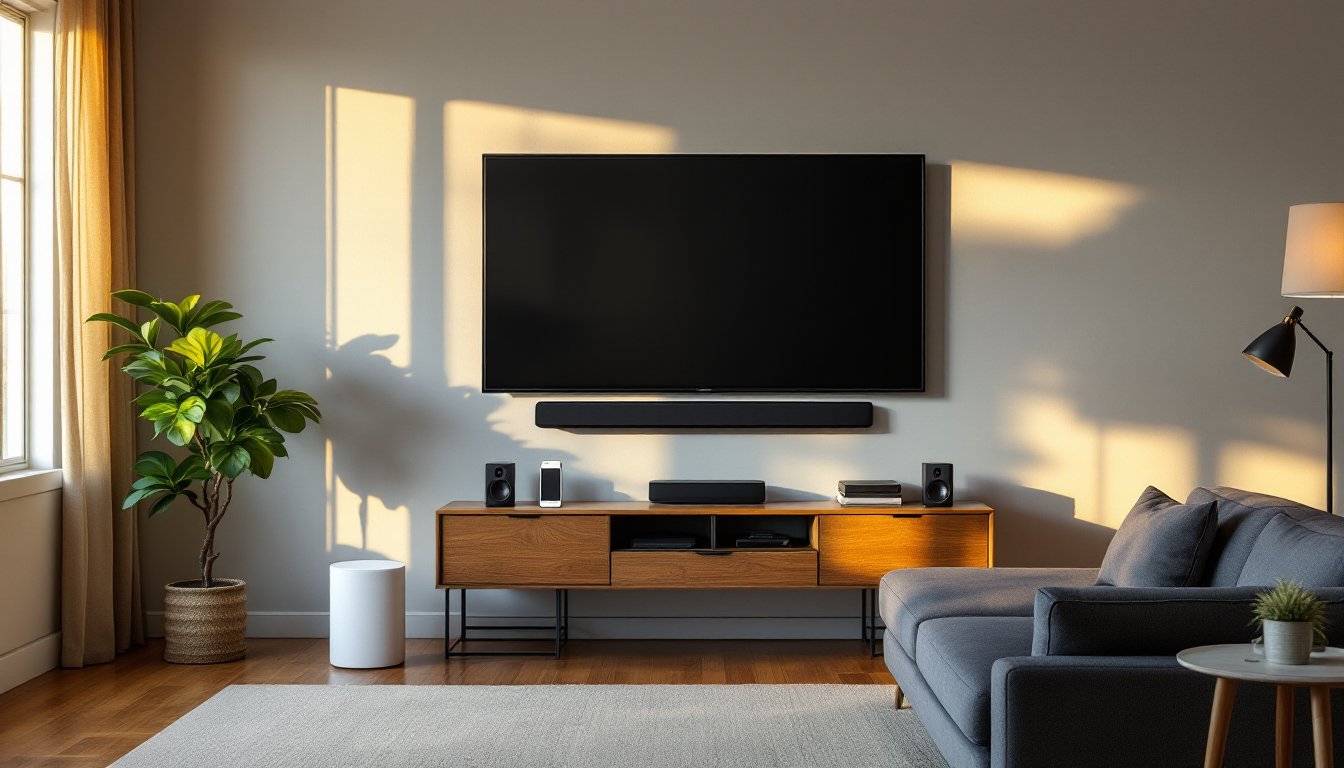
Measure your room and TV wall. Soundbars should be centered under or mounted directly below the TV. The Arc and Beam can be wall-mounted using the official Sonos brackets or third-party mounts rated for their weight (Arc: 13.78 lbs, Beam: 6.2 lbs). Wall mounting requires locating studs with a stud finder and using the included anchors or toggle bolts for drywall. If you’re mounting above a fireplace or on brick, expect to drill masonry anchors, rent a hammer drill if you don’t own one.
For surrounds, placement matters. Aim to position them 1–2 feet above ear level when seated, angled slightly toward the listening position. If wall-mounting, use the Sonos-compatible speaker mounts and locate studs or use heavy-duty drywall anchors rated for at least 10 lbs per speaker. Don’t skip the level, crooked speakers are the hallmark of a rushed install.
Ensure your Wi-Fi network can handle the load. Sonos recommends a dual-band router (2.4 GHz and 5 GHz) with a strong signal in the room where the system will be installed. If you experience dropouts or lag, consider adding a Wi-Fi mesh node or hardwiring the soundbar to your router via Ethernet (the Sonos app will automatically create a dedicated Sonos network). Smart home platforms covered by tech sites like Digital Trends often evaluate network performance for wireless audio systems.
Budget Considerations and System Configurations
A basic Sonos home theater starts around $279 for the Ray alone, or $499 for the Beam (Gen 2). Add the Sub (Gen 3) at $799, and you’re at $1,298 for a 2.1 setup. Tack on two Era 100 surrounds at $249 each, and a full 5.1 system costs roughly $1,796. Prices fluctuate with sales events and regional taxes, so budget 10–15% above list price for mounting hardware, cables, and potential electrician fees.
The Arc + Sub + Era 300 surrounds configuration pushes the total to around $2,696 (Arc $899, Sub $799, two Era 300s at $449 each). This is the premium setup for dedicated home theater rooms or living rooms where audio quality is a priority. For most households, the Beam (Gen 2) + Sub + Era 100 surrounds offers the best value, immersive sound without the Arc’s premium.
If you’re on a tight budget, start with a soundbar alone and add components later. Sonos is modular: you can buy the Beam today, add the Sub in six months, and the surrounds the following year. Just avoid mixing soundbar models, once you choose the Beam, you can’t swap it for the Arc without starting over.
Don’t forget cables and accessories. You may need a longer HDMI cable (certified Ultra High Speed HDMI for Atmos), wall-mount kits ($79–$99 from Sonos), speaker stands ($100–$200 per pair), or cable raceways if you’re hiding power cords along baseboards. These add-ons can tack on another $150–$300 to the total.
Setting Up Your Sonos Home Theater: A DIY Guide
Tools and materials:
- Stud finder (magnetic or electronic)
- Drill/driver with bits (1/8″ pilot, Phillips head)
- Level (24-inch torpedo or laser)
- Tape measure
- Pencil
- HDMI cable (if not included)
- Wall anchors or toggle bolts (if mounting to drywall without studs)
- Safety glasses and dust mask (for drilling)
Step-by-step installation:
-
Unbox and inventory. Confirm all components, cables, and brackets are present. Download the Sonos app on your phone before starting, you’ll need it to configure each device.
-
Position the soundbar. If placing on a TV stand, center it and ensure it doesn’t block the TV’s IR sensor. If wall-mounting, use the stud finder to locate studs, mark the bracket holes, drill 1/8-inch pilot holes, and drive screws into studs. For drywall-only mounting, use the included toggle bolts rated for the soundbar’s weight. Attach the soundbar to the bracket and double-check with a level.
-
Connect to the TV. Plug the HDMI cable into the soundbar’s HDMI port and the TV’s HDMI ARC or eARC port. Power on both devices. The TV should auto-detect the soundbar: if not, navigate to the TV’s audio settings and select HDMI ARC as the output. For optical connections (Ray only), use the included adapter and set the TV’s audio output to “optical” or “PCM.”
-
Add the system in the Sonos app. Open the app, tap “Set up a new system,” and follow the prompts. The app will guide you through connecting the soundbar to Wi-Fi, updating firmware, and tuning audio with Trueplay (iOS only). Trueplay uses your phone’s microphone to measure room acoustics and adjusts EQ automatically, skip it if you don’t have an iPhone, but it’s worth borrowing one for this step.
-
Install surrounds. Place or mount the rear speakers 1–2 feet above seated ear height, angled toward the listening area. Wall-mount using the same stud-finding and pilot-hole method as the soundbar. Plug them in, then add them as surrounds in the Sonos app (Settings > System > [Your Room] > Add Surrounds). The app will prompt you to identify left and right channels.
-
Add the Sub. Position it anywhere in the room, corners often boost low-frequency output, but experimentation helps. Plug it in, then add it in the app (Settings > System > [Your Room] > Add Sub). Run Trueplay again if available: it recalibrates the system with the Sub active.
-
Test and tune. Play a Dolby Atmos test video from a streaming app (Netflix, Disney+, Apple TV+). Listen for dialogue clarity, surround panning, and bass response. Adjust the Sub level and surround volume in the app’s EQ settings. If you hear dropouts, check Wi-Fi signal strength or switch the soundbar to a wired Ethernet connection.
Safety notes: Always wear safety glasses when drilling overhead or into masonry. Use a dust mask if drilling drywall in enclosed spaces. If you’re unsure about mounting into studs or running new electrical outlets, consult a licensed contractor, drywall repairs are cheaper than a fallen soundbar or fire hazard from overloaded extension cords.
Resources like Good Housekeeping sometimes publish tested guides on smart home installations, including mounting best practices and tool recommendations. For final system tuning, small adjustments in speaker positioning, moving surrounds a few inches or angling them differently, can yield noticeable improvements. Take your time: good audio is worth the extra 20 minutes.